
How to Verify an Official Source for the Stremio App
Independent editorial guidance on compatibility, device settings, safety, and responsible use.
A search for “Stremio download” can turn up pages with similar names and artwork. The most reliable starting point is the app publisher’s site, followed by the store or installation path it documents for your device. This independent guide explains how to compare publisher details, recognize a mismatched installer, keep track of updates, and verify the rights behind a viewing source.
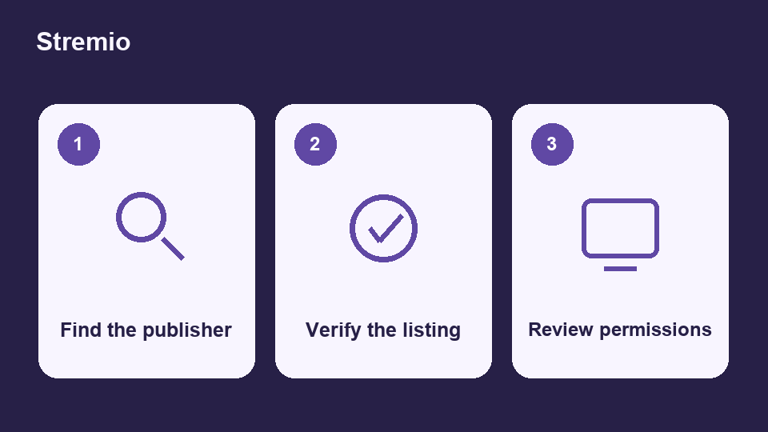
Follow the publisher’s route to the store
Open the Stremio publisher’s platform guide and select the operating system you use. If the publisher directs you to a device store, find the listing there. When the publisher supplies a store listing link, use it to identify the exact entry. On the store page, check the displayed developer information and the listed support website or contact details. Compare those details with the publisher’s own information before installing. [Stremio platform guide](https://www.stremio.com/downloads)
Suppose two results both show the Stremio name and a similar icon. One takes you to the store entry referenced by the publisher, while the other takes you to a promotional page with a large installation button. Use the publisher’s store route. Reviews and logos can help you recognize an app, but the documented connection between the publisher and the listing is the evidence you need.
Check how an APK reached your device
If you need a Stremio APK, first verify that Stremio documents manual installation for the platform you identified. Confirm that the package comes through that publisher-controlled route and corresponds to the operating system and architecture of your device. A filename can be edited, so a filename containing “Stremio” and a plausible release number provides little evidence of origin.
If someone sent you an installer in a message, disregard that copy and start a fresh check with the publisher. If an installation prompt asks you to remove an existing copy first, stop and check where that copy came from and whether the new file matches the edition you need. Back out if you cannot establish provenance. Review Google Play Protect alerts on supported devices and keep scanning enabled. [Stremio platform guide](https://www.stremio.com/downloads) [Google Play Protect guidance](https://support.google.com/android/answer/2812853?hl=en)
Use the same checks for updates
Update prompts deserve the same attention as first installs. If you installed Stremio through a verified store listing, open the store directly and check that listing for an update. If you used a documented manual route, return to the publisher’s section for your platform and follow its current guidance. This matters especially on a shared TV where another person may have set up the app.
For example, if a browser window says you must install an update to play a video, close it and check the app source separately. If the verified store has no update for your device, review the publisher’s support guidance or check with the viewing provider to see whether the message was about its own app. Keep a short record of the platform and verified installation source so anyone who maintains the device can find the same listing.
Verify the stream separately from the software
The app publisher and the organization with permission to show a movie can be different entities. When a title comes from a service, visit that provider’s own website or app and confirm that it offers the exact title for your region. Check the release year, episode, and access conditions, especially when a search result includes several productions with similar names. [Stremio Help Center on content sources](https://stremio.zendesk.com/hc/en-us/articles/360000294431-What-can-I-watch-in-Stremio-with-the-official-add-ons)
For example, a community add-on might list a documentary that a festival screened once. To establish current viewing rights, look for the rights holder’s release page or the streaming provider’s own listing. If the only evidence is a poster inside the app or a past festival schedule, leave that stream unopened and look for a current offer from a verified provider. Treat the software check and the content check as two separate decisions before you press play.
Next step