
Stremio Compatibility for Android Phones, TVs, and Streaming Devices
Independent editorial guidance on compatibility, device settings, safety, and responsible use.
To check whether Stremio fits your setup, identify the exact device running the app, match its operating system to the publisher’s platform instructions, and test your normal viewing setup. Compatibility involves the installation, the remote or touchscreen controls, and the way your television and audio equipment handle playback. This independent guide covers each check and explains how to verify the app publisher and the source of a title.
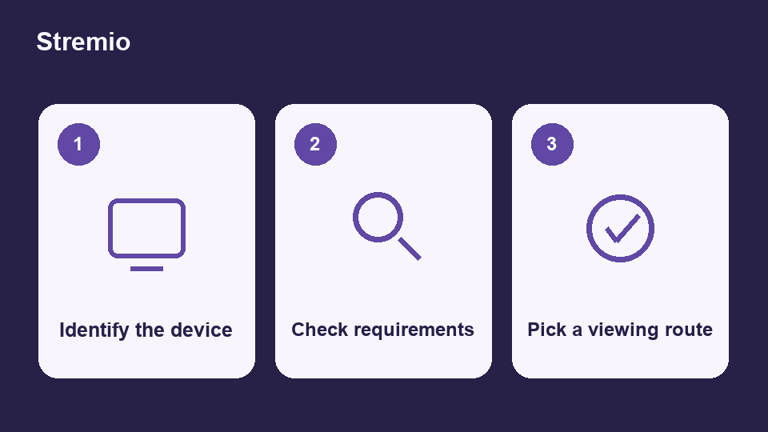
Find the model and operating system
On a phone or tablet, open Settings and look for the About screen. On a television or streaming device, look under Settings for system information. Write down the full model number, the operating system name, and its version. Menus vary, so use the manufacturer’s manual for your model if the device hides these details under a different heading.
If a streaming stick is plugged into a TV, switch to its HDMI input and open settings with the stick’s remote. For example, a viewer with a Samsung television and a separate Android TV box has two distinct software environments. Installing Stremio on the box means checking the box’s compatibility. Installing an app directly on the television means checking the television’s own store and operating system. [Stremio platform guide](https://www.stremio.com/downloads)
Match the app edition to the device
Open the publisher’s platform guide and find the entry that matches the operating system you recorded. Use the store or installation route documented for that platform. In the device’s store, compare the developer and support details against the listing identified by the publisher. One store can show different results on different devices, so perform the check on the hardware you intend to use.
For manual installation on a supported Android device, use the publisher’s device-specific instructions. If there are multiple Android TV packages, check the manufacturer’s documentation for the architecture the device software supports. A package selected for a phone is a poor compatibility test for a remote-controlled TV. If your TV runs a different operating system, look for that system in the publisher’s platform guide and check the store associated with the exact model. [Stremio platform guide](https://www.stremio.com/downloads)
Try the controls and playback you depend on
After installation, use the input you will rely on day to day. On a TV, try navigating search, selecting a title, starting playback, and going back with the remote. On a phone, try the same actions with touch. Test with a video you have permission to watch, and check whether the controls respond before making changes to your network or equipment.
Check sound and subtitles as well as picture. For instance, if your setup uses a soundbar, play a short authorized clip with your normal output selected. If the picture works but there is silence, repeat the same clip using the television speakers. Sound through the speakers narrows the investigation to the external audio path or its settings. If captions are important, select an available subtitle track and test it during dialogue.
Confirm what the viewing provider supports
A working Stremio installation tells you the device can open the app. Before relying on a particular movie or series for a viewing session, check the provider named in the result. Search for the title on that provider’s own site or app, match the year and episode where applicable, and verify the offer for your region and account. If the result opens another service, check that service’s own device requirements too. [Stremio Help Center on content sources](https://stremio.zendesk.com/hc/en-us/articles/360000294431-What-can-I-watch-in-Stremio-with-the-official-add-ons)
For example, if a provider lists a documentary in your region, try opening the provider’s listing directly on the device before planning a family screening. If the listing appears on your phone but the provider cannot play it on the TV, consult the provider’s support information for that television or player. For a film distributed by its creator, check the creator’s own release page for the authorized viewing location. Record the device model, chosen app edition, and confirmed provider so you can repeat the setup later.
Next step