
Stremio Playback Troubleshooting for Buffering, Sound, and Subtitles
Independent editorial guidance on compatibility, device settings, safety, and responsible use.
When Stremio stalls, plays without sound, or displays the wrong subtitles, start by checking whether the fault affects one source, one device, or several apps. A short comparison with a video you have permission to watch can guide your next step. This independent guide covers playback tests, publisher and viewing-source checks, and the details to gather if you need support.
Identify the source before testing playback
Check the exact title, release year, and episode, then identify the service supplying the video. Open that service’s own website or app and confirm that it offers playback for your region and account. If the stream is from a creator or distributor, look for a release page that expressly identifies where the work can be watched. If you cannot verify the source, switch to a title or provider you can check.
If the Stremio result opens a provider’s app, try the same episode directly in that app. For example, if an episode also fails when you open it there, check the provider’s account and device support information. If it works directly, note what happens when you select the viewing option in Stremio, including where the handoff stops. [Stremio Help Center on content sources](https://stremio.zendesk.com/hc/en-us/articles/360000294431-What-can-I-watch-in-Stremio-with-the-official-add-ons)
Narrow down buffering and startup failures
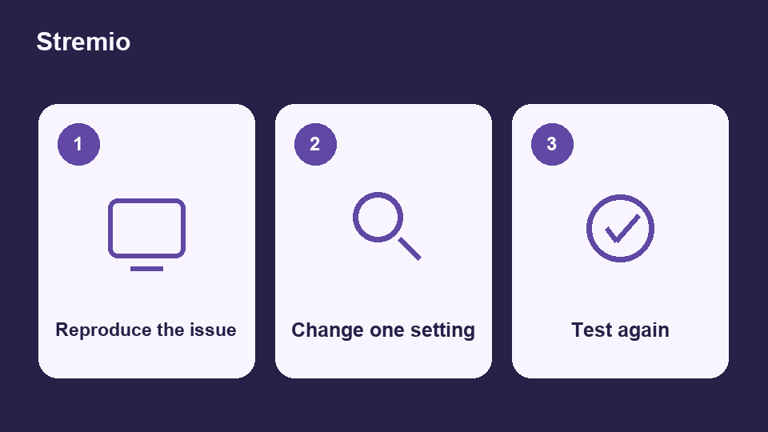
Play a second authorized title on the same device. If possible, choose one that you have played successfully before. Then test the original title through its authorized provider on another device connected to the same network. Change one variable at a time so you can tell whether the problem follows the title, the player, or the network. Stremio’s support guidance identifies poor availability of an individual source as one possible cause of repeated buffering. [Stremio Help Center on buffering](https://stremio.zendesk.com/hc/en-us/articles/360021479671-Video-is-buffering-all-the-time)
If several apps stall on the TV but work on a phone nearby, focus on the TV’s connection. Try a wired connection if your equipment supports it, or retest over Wi-Fi with large household downloads paused. If one title fails across devices while other videos play, check whether the provider can reproduce the problem. Record whether playback never starts, stalls at a fixed timestamp, or pauses intermittently.
Test picture, audio, and subtitles separately
For a picture with no sound, first check mute and the selected audio output. Then play the same scene through the TV speakers if your setup uses a soundbar or receiver. If the speakers work, check the external equipment’s input and the TV’s audio output settings. If only one title has the problem, try another audio track if the player offers one, and record which track failed.
For subtitles, confirm the selected language and check that you opened the correct episode or cut. If captions drift farther out of sync as the video progresses, choose a track supplied for that edition if one is available. When picture alone fails, compare with another authorized video and note whether menus and audio still respond. Those details help distinguish a playback problem from a frozen app.
Verify the app source before updating or escalating
Identify your device model and operating system, then find its edition in the Stremio publisher’s platform guide. For a store installation, confirm the listing’s developer and support information against the publisher’s reference and check for an update in that listing. For a manual installation, use the publisher’s instructions for your exact platform. After an update, repeat the same playback test so you can see whether it made a difference. [Stremio platform guide](https://www.stremio.com/downloads)
If the problem persists, record the device model, operating system, installed app version, verified provider, error message, and steps that reproduce the issue. Include the result of trying a second authorized title and, if relevant, the audio output or subtitle track. Contact the viewing provider for a failure that also occurs in its own app. For a problem isolated to Stremio, use its Help Center and share the observations without including passwords or account tokens. [Stremio Help Center](https://stremio.zendesk.com/hc/en-us)
Next step